
Adding hosts in Poppo Live is a simple process once you already have access to the “Agent” menu. You only need to enter the section to invite or add hosts, enter the user ID and host code, send the invitation, and ask the host to accept it from their account.
In this guide, we explain how to add hosts in Poppo Live, how to find the user ID, how to view the host code, and how to confirm that the host was correctly linked to your agency.
In this guide
What you need before adding a host
Before adding a host to your agency, make sure you have access to the agent menu and the correct details for the person you want to link.
- Have an active agent account in Poppo Live.
- Access the “Agent” menu from the app.
- Have the host’s user ID.
- Have the host code.
- Verify that the host is not already linked to another agency.
How to find the user ID
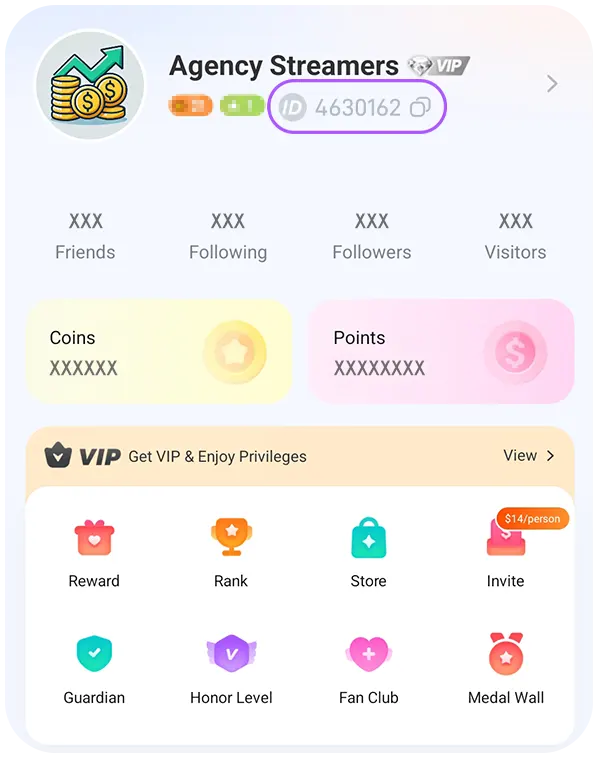
The user ID is the detail that identifies the host account you are going to add inside Poppo Live. It is usually found in the person’s profile in the app.
- Ask the host to open the Poppo Live app.
- They should go to their profile.
- There, they can view or copy their user ID.
- That is the ID you should use when adding them from your agent dashboard.
How to find the host code
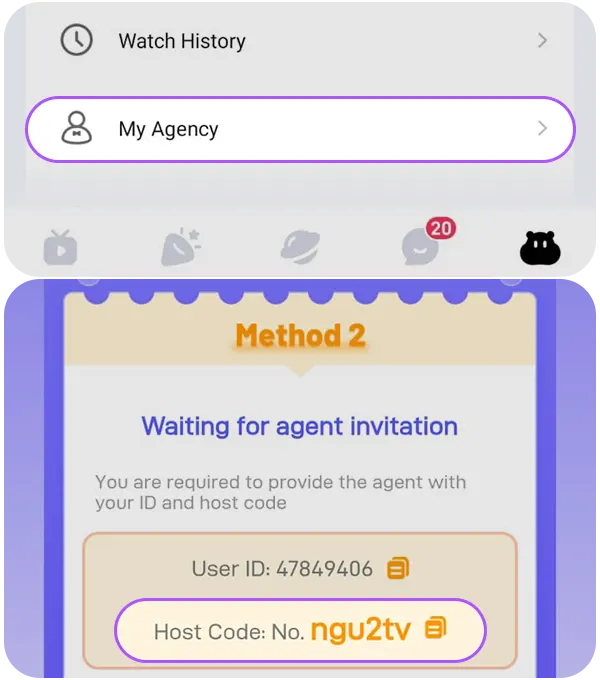
The host code is another detail Poppo may request to link a host to your agency. The host must check this code from their own account in the app.
- Ask the host to open the Poppo Live app.
- They should go to the “My Agency” menu.
- On that screen, they can view their ID and host code.
- The host should copy that code and send it to you together with their user ID.
- If they cannot find the detail, they can tap the help icon next to the code field to view the in-app instruction.
How to add hosts from the Agent menu
Once you have the user ID and host code, go to the “Agent” menu and look for the option to invite or add hosts to your agency.
- Open Poppo Live and log in.
- Go to the “Agent” menu.
- Look for the “Add host” option.
- Enter the host’s user ID.
- Enter the host code.
- Press “Send invitation”.
- Ask the host to check their notifications and accept the invitation.
How to confirm the host was added
After sending the invitation, ask the host to check their messages or notifications inside Poppo Live and accept the request. Then review your linked hosts list from the agent dashboard. If the process was completed correctly, the new host should appear in your host list.
- Verify that the user ID is correct.
- Ask the host to accept the invitation.
- Check whether they appear in your linked hosts list.
- Confirm that the host account is active.
- Follow up from the agent dashboard.
Common issues when adding hosts
If the system does not allow you to add the host, first check that the details are entered correctly and that the host can receive or accept the invitation from their account.
- The host ID is misspelled.
- The host code does not match or was copied incorrectly.
- The host already belongs to another agency.
- The host account is not active or is not verified.
- The host has not yet downloaded or registered in Poppo Live.
- The app or dashboard does not update the information instantly.
What to do after adding hosts to your agency
Adding hosts is only the first step. After that, you should follow up on their activity, review their performance, and help your network grow consistently.
- Review the host’s activity from the dashboard.
- Follow up on their results.
- Review the incentive tool for hosts.
- Organize your host team.
- Check your commissions and progress.
- Invite new hosts to grow your agency.
Not a Poppo Live agent yet?
To add hosts, you need agent access. If your account is not active yet, first review how to register as a Poppo Live agent and access the dashboard from the app or web.
Frequently asked questions
-
Where do I add hosts in Poppo Live?
From the Agent menu, in the section to add or invite hosts.
-
What details do I need to add a host?
You need the host’s user ID and host code to send the invitation.
-
Where can the host find their user ID?
The host can find their ID inside their profile in the Poppo Live app.
-
Where can the host find their code?
The host can find their code by opening the My Agency menu, where the host code appears.
-
Why can’t I add a host?
This can happen if the ID is incorrect, if the host code does not match, if the account is not active, or if the host already belongs to another agency.
-
How do I know if the host was linked?
You can check it from your linked hosts list in the agent dashboard after the host accepts the invitation.